
Free quote studio
Free Instagram Quote Maker
The free Instagram quote maker that turns any quote or affirmation into a clean, aesthetic post in seconds. No design app, no sign-up.
1 Choose or write your quote
Your quote appears here.
Tap the quote to edit it
2 Background
3 Background image (optional)
Drag an image here
or click to browse · fills the card, text turns white
4 Font
5 Make it yours
6 Export
On a phone, choose Save Image to add it to your photos.
Create an Instagram quote post in seconds
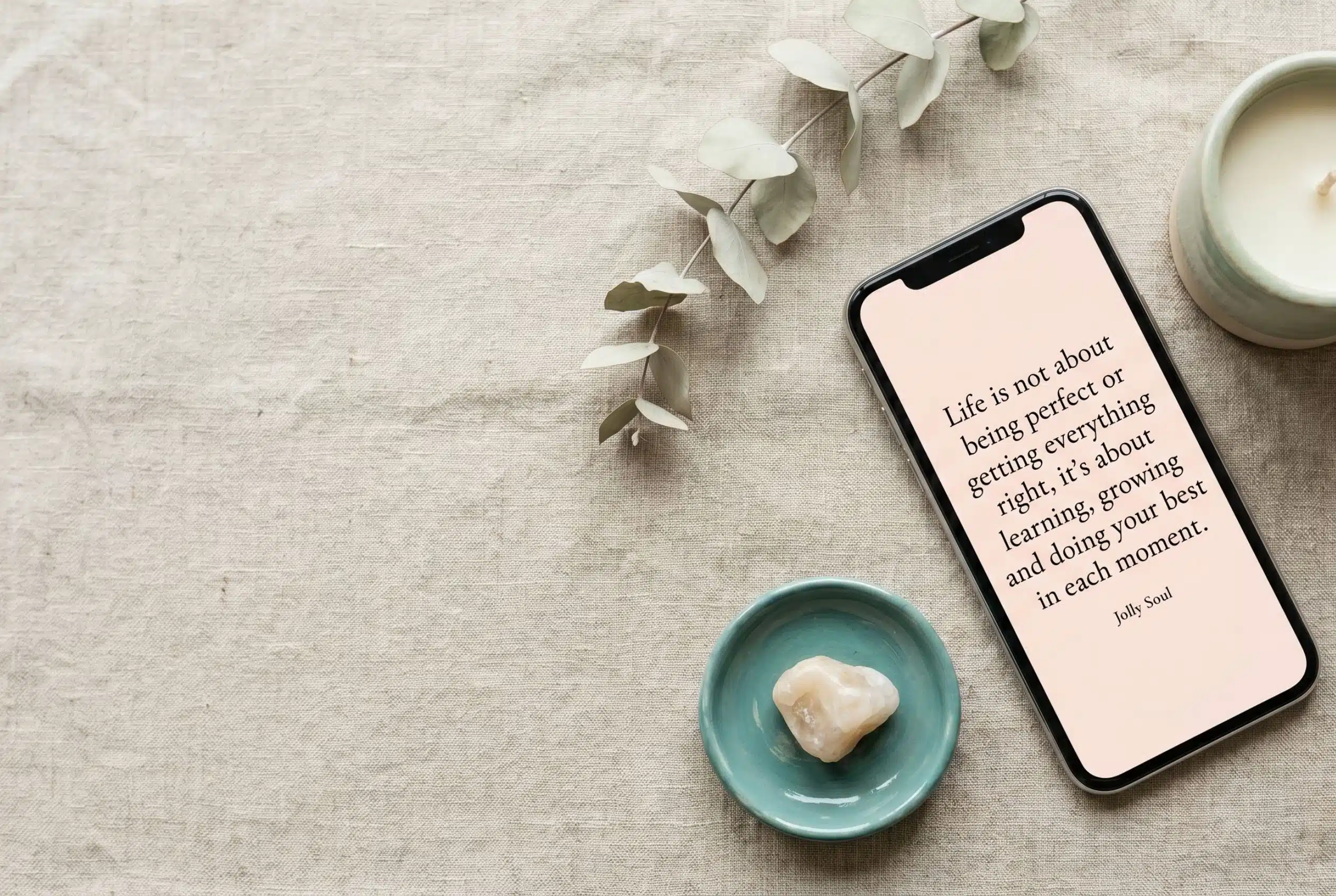
This free Instagram quote maker turns words into a finished, share-ready post. Pick a quote from the built-in library or paste your own, choose a background and font, and export it at the exact size Instagram and Pinterest want. No sign-up. No watermark.
It is built for creators, coaches, and healers who post quotes and affirmations but do not want to fight with design tools. Every choice updates the live preview, and what you see is exactly what downloads.
How to make a quote post
- Choose or write your quote. Draw from the affirmation library, or tap the quote to type your own.
- Pick a background. Use a calm preset colour, any custom colour, or upload a photo for a full-bleed look.
- Set the font and size. Choose an elegant serif or clean sans, adjust the size, and align left or centered.
- Add your handle. Optionally show your @handle so reshared posts point back to you.
- Export. Pick Instagram post, Instagram portrait, or Pinterest, then save your PNG.
What size should an Instagram quote be?
Instagram feed posts look best as a 1080 by 1080 square or a 1080 by 1350 portrait. Portrait takes up more screen space in the feed, so it tends to get more attention. This maker exports both sizes, plus a 1000 by 1500 Pinterest pin, so one quote covers every platform.
Tips for quote posts that get shared
- Keep the quote short. One clear line is easier to read and reshare than a paragraph.
- Use high contrast. Dark text on a light background, or white text over a darkened photo.
- Stay consistent. Pick one or two fonts and a small palette so your feed looks cohesive.
- Add your handle. Quote posts travel; a handle turns a reshare into a new follower.
- Pick portrait for the feed and a 2:3 pin for Pinterest to fill more of the screen.
Frequently asked questions
Is this Instagram quote maker free?
Yes. It is completely free. There is no sign-up, no watermark, and no limit on how many quote posts you create or download.
What size are the quote posts?
You can export three sizes: Instagram post at 1080 by 1080, Instagram portrait at 1080 by 1350, and Pinterest at 1000 by 1500. Each is the platform’s recommended size.
Can I use my own quote?
Yes. Tap the quote on the card to type your own, or use the “Add your own quote” box. You can also draw from the built-in library of 50 affirmations.
Can I add my own background photo?
Yes. Upload any image and it fills the card with a soft dark overlay so the text stays readable in white. Without a photo, you can choose a preset or custom background colour.
Do I need a design app or account?
No. Everything runs in your browser. There is nothing to install and no account to create. Your image never leaves your device.
How do I save the quote on my phone?
Tap Save quote, then press and hold the image and choose Save to Photos, or use the download button in the pop-up. On a computer, the file downloads directly.
Can I use these quotes commercially?
You own the posts you make with your own words and images. If you upload a photo, make sure you have the rights to use it.
What makes a good Instagram quote post?
A short, clear quote, high contrast between text and background, a consistent font, and your handle in the corner. Portrait sizing also helps it fill more of the feed.
Your quote is ready
Right-click the image and choose Save image as… Press and hold the image, then tap Save to Photos